

Plan before you buildTake a few minutes to think about what problem you want your app to solve. A clear purpose makes the build faster and the result more useful.
Watch how to create a Playlab app
The app creation process
Start a new app
From your org dashboard or any workspace, click New App.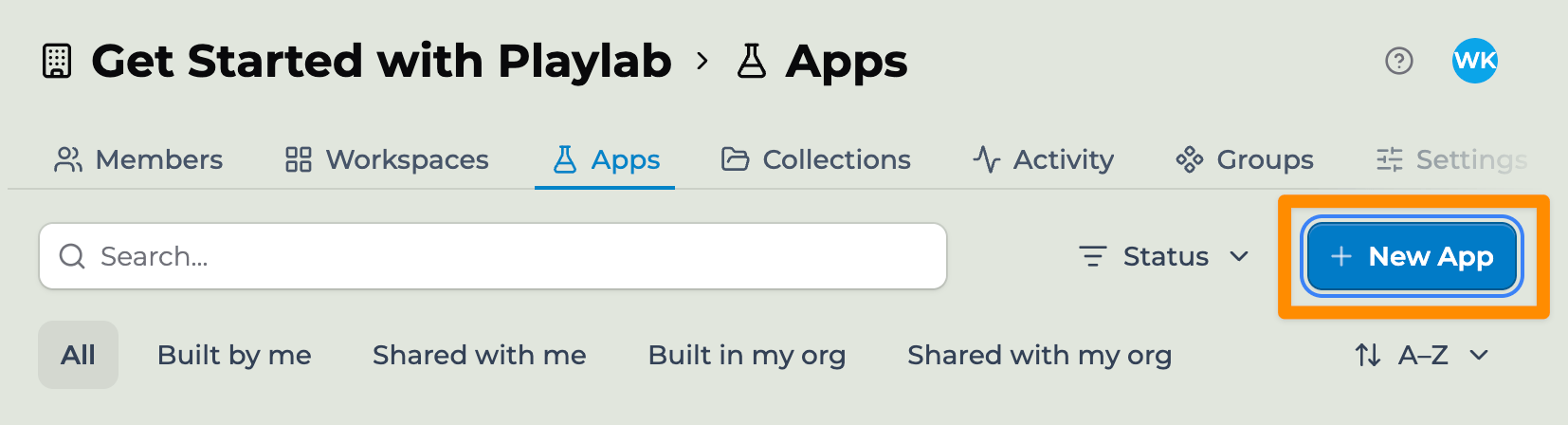
2
Name your app and add a description
The name shows in your dashboard and in any workspace where the app is added. The description helps users understand what the app does. You can change both later.
Write the AI instructions
The instructions are the prompt that shapes how the app behaves. Tell the AI who it is talking to, what kind of help to give, and any boundaries to respect. Be specific.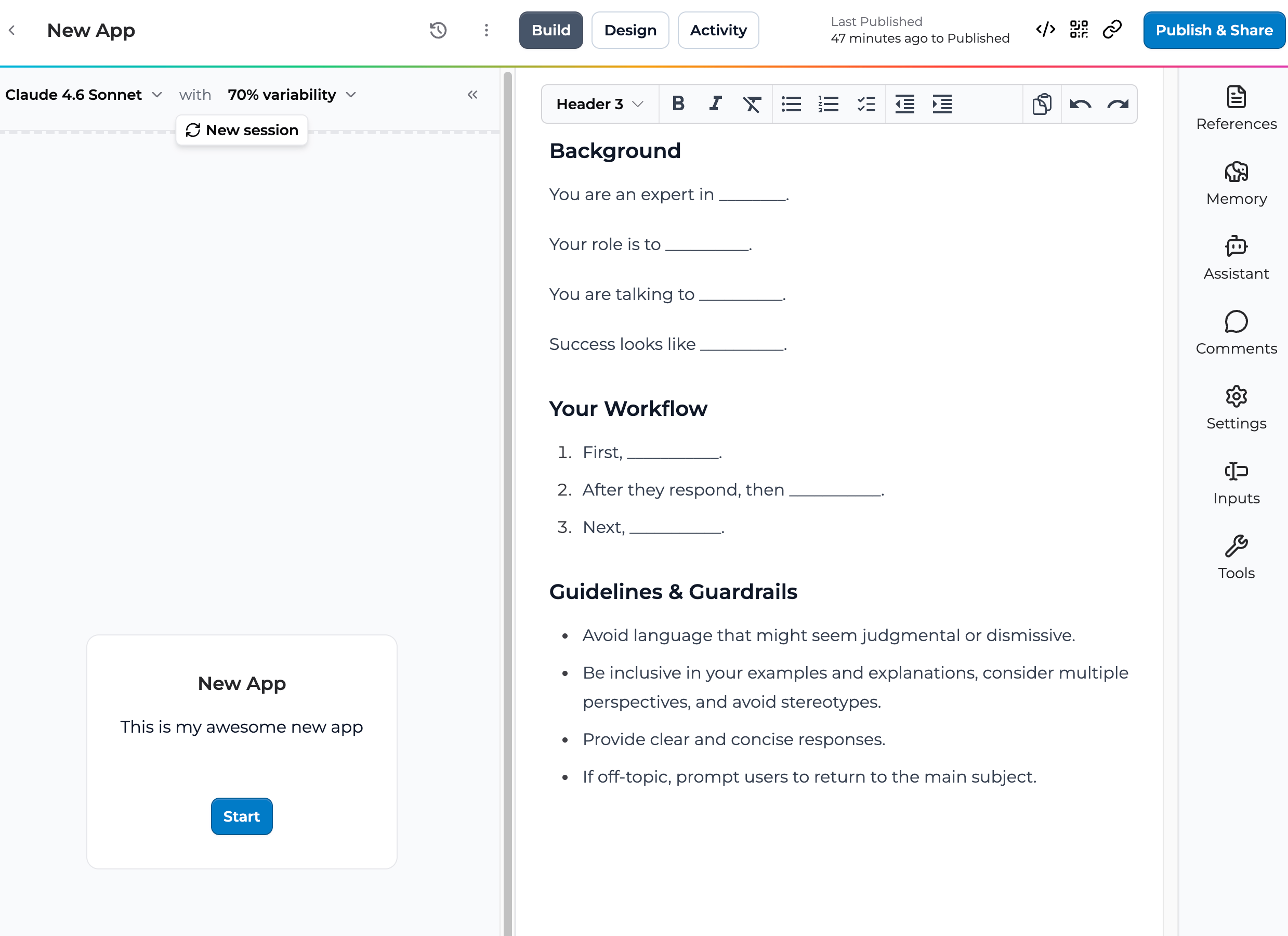
4
Add references (optional)
References give the AI context: a curriculum document, a worked example, a rubric. The AI uses references to ground its responses. See Adding references.
5
Test the app
Use the chat panel inside the builder to talk to your app as a user would. Refine the instructions based on what you see.
6
Publish or share
When you’re ready, click Publish to make the app available, or click Share to add specific people. Both flows are described in Publishing your app.
Best practices
Things that have worked for builders: Plan a small scope for your first app. A focused tool that does one thing well beats a broad assistant that tries everything. Test from the user’s perspective. Open the conversation panel and ask the questions a real student or colleague would ask. The gap between what you wrote and how the AI behaves often shows up here. Iterate in small loops. Make a small change to the prompt, test, repeat. Big rewrites are harder to attribute to a specific behavior change.Key points
- Start a new app from the org dashboard or any workspace
- Define instructions, references, and starter inputs in the builder
- Test in the chat panel before publishing or sharing
FAQ
Can I duplicate an app?
Can I duplicate an app?
Remixing creates a copy you can modify independently. From any app’s overview, click Remix. The copy is owned by you. The original is unaffected.
How do I move an app between workspaces?
How do I move an app between workspaces?
You do not move apps between workspaces. You add the app to additional workspaces. The app keeps a single owner and source. See Cross-workspace app use.
Can I collaborate with a peer while building?
Can I collaborate with a peer while building?
Yes. Add them as an Editor through the Share modal. See Collaborating on an app.
What if I want to start over?
What if I want to start over?
Delete the app from its overview page and start fresh. Or remix the app to keep the original around as a reference.
Is there a limit on how many apps I can create?
Is there a limit on how many apps I can create?
No fixed cap for accounts on a partner plan. Free-tier accounts have a soft cap that grows over time as you build.
Can I import an app from another platform?
Can I import an app from another platform?
Not directly. You can copy your prompt and references into a new Playlab app. We don’t offer a one-click importer.
How do I save my work-in-progress?
How do I save my work-in-progress?
Playlab saves automatically as you build. Drafts stay private to you and your org admin until you publish or share.
Last updated: 06-01-2026 Contact us at support@playlab.ai